We were facing this problem, found on some blog's that is a MS bug.
I know touching SQL DB not recommended. But found
to get away with this.
"The provided App differs from another App with the same version and product ID"
Ever since the beginning of 2013, we have this this problem when you deploy and redeploy App (now SharePoint Add-in) to either SharePoint 2013 on-premises or Office 365's SharePoint Online.
If you Bingle about - you will find various fixes, in order of severity:
2 - try removing it from Site and Site Collection recycle bins. Also remember the second level recycle bin. This one is usually good enough for Office 365.
4 - You can also just increment the version number. This is difficult when you work in a team and you don't want to bump _everyone_'s number
5 - Delete the offending Site Collection and create a new one
I found a new, TOTALLY UNSUPPORTED WAY.
Sometimes, you really just want to delete the old one. But the Object Model doesn't have objects that go that deep. Hence there are no way to do this via command-line either.
You need AppInstance to perform an uninstall. If you can't get an AppInstance, but the AppPackage is still in your Site Collection, you are pretty much stuck.
Let's go check out the content database. Disclaimer: Do this if you are curious. Also, don't do this on your production.
SELECT [PackageFingerprint]
      ,[ProductId]
      ,[Package]
      ,[Title]
      ,[IsDownloadInvalidated]
      ,[SiteId]
  FROM [WSS_CONTENT_DB].[dbo].[AppPackages]
You want to know which Site Collection it is. So figure out which AppPackage is the one SharePoint can't delete - by cross-checking the SiteId
PackageFingerprint is an important field that we'll need in a minute. It acts like a unique identifier. IsDownloadInvalidated is probably 0 (meaning it is valid). You just can't delete it.
SharePoint has a few nice store procedures.
exec [WSS_CONTENT_DB].[dbo].proc_App_InvalidatePackage
    @PackageFingerprint, @SiteId

-- example
exec [WSS_CONTENT_DB].[dbo].proc_App_InvalidatePackage
    0x9DB9C067E1B970AD1258E28AE26EC3AE17CF772BC093D0CCF8E1832FF3B171261A09812778830621AA63FD4C9D1EA922DC5432E1CACDEA00B1CDA82F9A28CAE2,
    '282292D5-3686-460D-9AB4-9354272FB2A1'
This stored procedure will flag the AppPackage as Invalid. If you do SELECT * FROM AppPackages again, you'll see it is now IsDownloadInvalidated = 1
So SharePoint now thinks there was something wrong with the download of this package :-)Let's invoke SharePoint's auto-immune system and nuke the AppPackage
exec [WSS_CONTENT_DB].[dbo].proc_App_DeleteInvalidatedDownloadApp
    @PackageFingerprint, @SiteId

-- same arguments.
This one will nuke the AppPackage clean.
You can now go back to PowerShell and redeploy your App.
We have a SharePoint site which was responsive for mobile devices, but due to some reason
it was showing proper desktop view , and when we squeeze browser to see responsive behaviour
then also UI was giving responsive behaviour.
but same site was not showing responsive behaviour on mobile devices.
Resolution:
we were missing a meta tag:
It worked perfectly after adding the tag.
Friday, 13 February 2015
Installing SharePoint 2013 on Windows 8
Installing SharePoint 2013 preview on Windows 8 is unsupported, You need to install on either Server 2008 R2 SP1 or Server 2012 RC. With Hyper-V support in Windows 8, why would you need to? Just virtualise the environment.
UPDATE: This installer will only work on Win8+ don't try it on Win7.
If you want it "close to the metal" without installing a server OS now you can, you decide for yourself if it is a good idea ;-) It is COMPLETELY unsupported by MS and should only be used for a local development/demo machine.
This setup requires you to be joined to a domain. If you want to use local accounts it can be done but it won't be described here. It would be great though if you help others by posting on how to do this here.
0) First make sure you have installed IIS on your machine. It isn't installed by default.
I'm installing pretty much everything except "good old" ASP.
Then make sure you have HTTP Activation AND TCP Activation installed (.NET Framework 4.5 Advanced Services/WCF Services).
If you are on Windows 8(1), make sure you have WIF installed. The standalone installer won't run on Win8 you install WIF
from "Turn Windows features on or off".
Make sure that the Net. Tcp Listener Adapter service and Net. Tcp Port Sharing Service are both configured to start automatically.
This will install the "launcher" into your directory of choice.
4) Browse to the location where you just installed the software and start Launcher.exe
5) When you start Launcher it will open a "OpenFile" dialog where you will pick the app to start. We first pick prerequisiteinstaller.exe to get all the prerequisites installed.
(Try pick another locked down installer)
6) Run through the prereq wizard and if you get a problem installing some of the components try to reboot. There's also a step when the
wizard will reboot the machine. Remember that when the machine has rebooted the wizard will automatically be launched by windows and
you will see an error message saying "this OS is not supported". Don't worry just close the wizard and relaunching using Launcher.exe as described above.
Once the wizard is complete you go to the next step and install SharePoint.
7) Restart Launcher.exe and pick setup.exe
8) Follow the setup wizard :-)
9) Click close to run the configuration wizard.
10) The next screen warns us that we are installing on Vista or Windows 7, don't worry the same applies to Windows 8/8.1 UNSUPPORTED in every way ;-)
11) Create a new Farm, wait and take a snack :-)
12) We are finally done running a "private cloud" ;-)
ULS Viewing Like a Boss (ULS Viewer is now available)
About the Unified Logging Service
The Unified Logging Service (ULS) is the primary logging mechanism in SharePoint to make it easier to develop applications, expose in-depth information for debugging, and vehicle to isolate problems or threshold issues when they are encountered. ULS writes events to the Trace Log and stores them in the file system.
For Developers ULS logs act as an extension of existing development tools as another debugging facility, in some scenarios, mitigating the need to attach a debugger to isolate an event.
For IT Professionals and support personnel ULS logs provide enough information and metadata to help determine the course of action necessary in resolution of an event and expedite support escalations where required.
The ULS Viewer provides a solution the enables presentation of ULS Log entries in a human readable format to aid in troubleshooting.
New ULS Viewer Features
Monitor multiple servers simultaneously, because we know you need to troubleshoot more than just a standalone server…
Personalize the output with the option to edit formatting.
Support for locating a specific log line within one or more ULS Logs based on a command line argument which enables other tools and solutions can leverage ULS Viewer as an external log viewer. Example:
ulsviewer.exe –fileat:@
Time format is yyyy/MM/ddTHH:mm:ss.FF
Support for opening multiple ULS Log files in a single tab based on a command line argument which enables other tools and solutions can leverage ULS Viewer as an external log viewer. Example:
ulsviewer ... -combine
Optionally you can combine with "-fileat": Example:
ulsviewer -fileat:@
Fixed in ULS Viewer
Resolved updating defined filters while in paused state which provides IT Professionals and Developers an additional tool to isolate issues in high trace flow environments.
Fixed Find Again command missing matching entries.
Fixed issues with multi-line messages.
Applies more strict filter with RegEx when finding the uls log files in the log folder so that non-uls log files are not picked.
I was working on a solution to find items by its content type throughout site collection using SPSiteDataQuery. I would suggest using Content Type ID instead querying using content type name as I found it breaks when move to other UAT or Production environments.
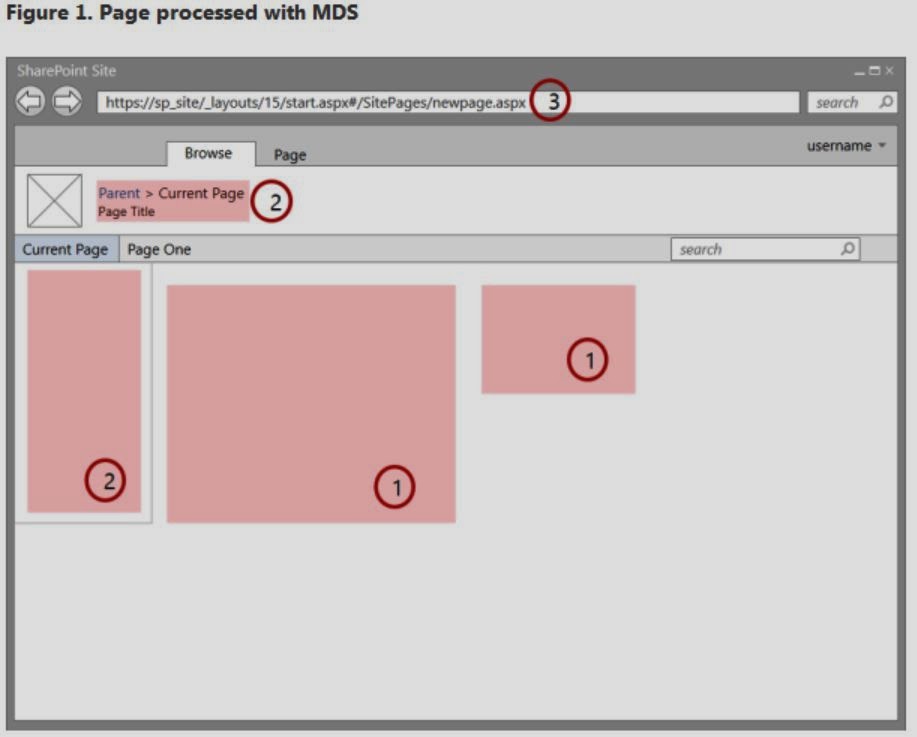
Minimal Download Strategy (MDS) is a new technology in SharePoint 2013 that reduces the amount of data that the browser has to download when users navigate from one page to another in a SharePoint site. When users browse an MDS-enabled site, the client processes only the differences (or delta) between the current page and the requested page. Figure 1 shows the sections that change from page to page and therefore require an update. The delta usually includes the data in the (1) content areas, as well as other components such as (2) navigation controls.
You can identify a site that has MDS enabled by looking at the URL. An MDS-enabled site has the (3) _layouts/15/start.aspx page in the URL followed by a hash mark (#) and the relative URL of the requested resource, as shown in Figure 1. For example, the following is the MDS-formatted URL for the page newpage.aspx:
It is equivalent to the following non–MDS-formatted URL:
https://sp_site/SitePages/newpage.aspx
Enabling and Disabling MDS:
MDS is actually a SharePoint Feature which is Scoped to Web, whose Id is “87294C72-F260-42f3-A41B-981A2FFCE37A”. The Feature is very straight forward. It toggles the “EnableMinimalDownload” property of the SPWeb object. It can be toggled by Server Side or CSOM or Power Shell. But the MDS is not enabled or compatible with Publishing Site.
Eg: (In JavaScript)
var clientContext;
clientContext = new SP.ClientContext.get_current();
this.oWebsite = clientContext.get_web();
this.oWebsite.set_enableMinimalDownload(true);
this.oWebsite.update();
clientContext.load(this.oWebsite);
clientContext.executeQueryAsync(
Function.createDelegate(this, successHandler),
Function.createDelegate(this, errorHandler)
);
function successHandler() {
alert("MDS is enabled.");
}
function errorHandler() {
alert("Error: " + arguments[1].get_message());
}
Every request is sent with the Header “X-SharePoint”. This header contains the information about the Master Page, Language and whether the page is read-only or read-write.
The RenderModeType property takes either “MinimalDownload” or “Standard” as the values. When the Publishing Feature is enabled, page will be having the ribbon. Specifically when using Publishingribbon in master page, SharePoint will automatically inject the control with the RenderModeType property set to Standard.
MdsCompliant:
If the site is upgraded from 2012, by default the upgraded sites will not be rendered by MDS even if “EnableMinimalDownload” property is set to true. This is because Delta Page checks all the controls in the page for a particular attribute called “MdsCompliant”. If any of the controls present on the page which does not have this attribute or IsCompliant property set to false , will not render any delta for that page. We can also add MdsCompliant to the assembly instead of adding it to each class.
Eg:
[MdsCompliant(true)]
public class Example: WebPart
{
protected override void CreateChildControls()
{
this.Controls.Add(new LiteralControl("MDS is enabled:" +
The basic mechanics of MDS are pretty simple. The main components of MDS are two engines, one in the server and another in the client, that work together to calculate the changes and render the pages in the browser when the user navigates from page to page in the site. Figure 2 shows the MDS flow when a user navigates through an MDS-enabled site.
Figure 2. MDS flow when a user navigates the site
The browser requests the changes between the current page and a new one in the SharePoint site.
The MDS engine in the server calculates the delta between the current and the new pages.
The MDS engine in the server sends the delta to the MDS engine in the client.
The MDS engine in the client replaces the changed areas on the current page with the new page content.
The resulting page is exactly as it would have been if the page had been downloaded without MDS.
The MDS engine in the client includes a download manager. All requests in the page are routed through the download manager. All controls in the page must subscribe to the download manager to learn when a URL has changed. The download manager makes one request for all the new control data. To be able to work with search engines, the MDS engine doesn’t directly use the href attribute of anchor tags to store MDS-formatted URLs. Instead, the SPUpdatePage function handles the onclick event and uses it to communicate with the server. The SPUpdatePage function is declared in the _layouts/15/start.js file.
The URL plays an important role in MDS. An MDS URL looks like the following: https://sp_site/_layouts/15/start.aspx#/SitePages/newpage.aspx.Start.aspx contains minimal shared UI and instructions for loading page changes. MDS considers the part following the hash mark (#) as the target page. The target page starts with a slash (/) followed by a URL relative to the SharePoint website. When the browser receives the URL, it sees that the part to the left of the hash mark hasn’t changed, so it fires a local navigation event. The MDS engine in the client captures the local navigation event and uses it to perform an MDS update.
MDS FailOver:
In some situations it’s not possible to determine whether the page can be updated properly. In these situations, the MDS engine issues a failover, which consists of an extra round trip to redirect the browser to the full version of the new page. These are the most common reasons why failover occurs:
The new page has a different master page.
The current master page has changed.
The MDS engine detects non-compliant HTML, for example:
Pages using ASP.NET 2.0
CSS or scripts not registered in the MDS engine
Illegal HTML
There are non-compliant controls on the page, for example:
The control is not in the MDS engine whitelist.
The control assembly is not marked as compliant.
The control class doesn’t have the MDS attribute.
The MDS engine tries to recover from a failover after the user navigates to yet another new page.
The Debug Diagnostic Tool (DebugDiag) is designed to assist in troubleshooting issues such as hangs, slow performance, memory leaks or memory fragmentation, and crashes in any user-mode process. The tool includes additional debugging scripts focused on Internet Information Services (IIS) applications, web data access components, COM+ and COM+ related Microsoft technologies, SharePoint, and .NET framework.
It is composed of the following 3 components: a debugging service, a debugger host, and the user interface.
The Debugging Service The debugger service (DbgSvc.exe) performs the following tasks:
Attach/Detach the host to processes
Collect performance monitor data
Implement HTTP ping to detect hangs
Inject leak monitor into running processes
Collect debugging session state information
Shows the state of each rule defined
The Debugger Host The Debugger Host (DbgHost.exe) hosts the Windows Symbolic Debugger Engine (dbgeng.dll) to attach to processes and generate memory dumps. It also hosts the main analyzer module to analyze memory dumps. Dbghost.exe has no dependency on the service “DbgSvc.exe” and can be used separately. The User Interface The user interfaces (DebugDiag.exe and DebugDiagAnalysisOnly.exe) present an interface to analyze memory dumps, automate the creation of control scripts and to show the status of running processes, including services. It is composed of 3 views:
Rules: Creates control script for the debugger host through a wizard. The script is located under the directory \scripts.
Advanced Analysis: Runs a selected “Analysis Script” against one or more memory dumps.
Processes: Shows status of running processes/services.
Features of Debug Diagnostic Tool
Analysis:
.Net 2.0 and higher analysis integrated to the Crash Hang analysis. SharePoint Analysis Script. Performance Analysis Script. .NET memory analysis script (beta). Native heap analysis for all supported operating systems
Collection:
Generate series of Userdumps. Performance Rule. IIS ETW hang detection. .NET CLR 4.0 support. Managed Breakpoint Support. Report Userdump generation to the Event log.
Deployment
Import/Export of rules and configuration, including ‘Direct Push’ to remote servers. Enterprise deployment support using XCopy and Register.bat.
Download the tool from the below links http://www.microsoft.com/en-us/download/details.aspx?id=26798